

QuickBooks error 6209 often occurs unexpectedly during software installation or Windows updates. This error is usually associated with company file issues, but it can also appear during the installation or upgrade process.
If you’re experiencing this problem, don’t worry, our detailed guide provides clear and effective solutions to help you fix it. QuickBooks error 6209 can disrupt your workflow and productivity, but by following the steps in our guide, you can easily identify the cause and effectively resolve the issue.
What Is QuickBooks Error 6209?
Error 6209 arises when QuickBooks cannot open or restore a company file. This error may also surface during a QuickBooks installation or after Windows updates. The system shows an error message such as:
A problem occurs when a company file cannot be accessed by QuickBooks … Error Codes: (‑6209, 0)
How to Fix QuickBooks Error Code 6209 0?
Follow these Solutions in sequence. After each step, try to open or restore your company file to check if the issue is resolved:
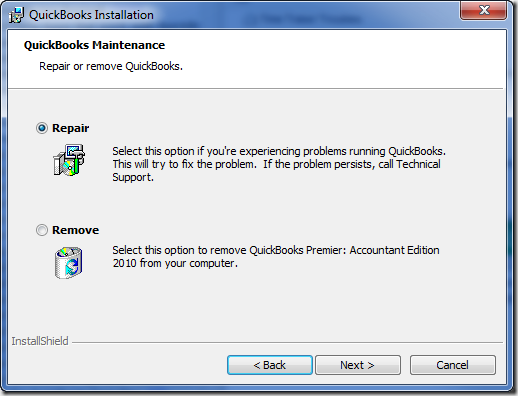
Solution 1: Repair the QuickBooks Application
- After the repair finishes, reboot and test.
- Close QuickBooks.
- Open Control Panel → Programs and Features (or Apps & Features in newer Windows).
- Locate QuickBooks, choose Uninstall/Change, then select Repair.
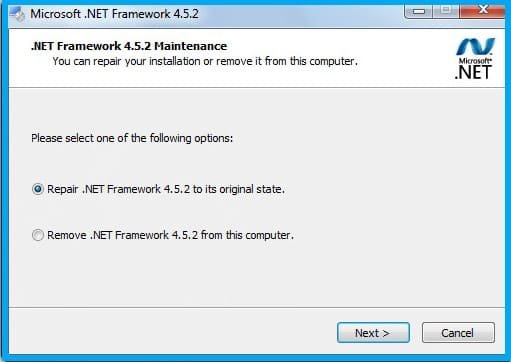
Solution 2: Repair/Reinstall Microsoft .NET Framework
- Open Control Panel → Programs & Features → Turn Windows features on or off.
- Enable (or re-enable) .NET Framework 3.5 and .NET Framework 4.x.
- If there’s a repair option for .NET, use it.
- Restart the computer.
- Use Microsoft’s .NET Framework Repair Tool if available.
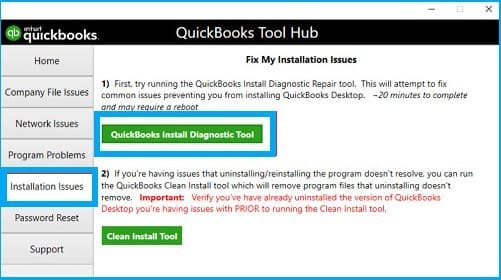
Solution 3: Run QuickBooks Install Diagnostic Tool
- Download and install QuickBooks Tool Hub (if not already installed).
- In Tool Hub, go to Installation Issues → QuickBooks Install Diagnostic Tool.
- Let the tool run (may take up to 10 minutes).
- Restart your computer and attempt to open the company file.
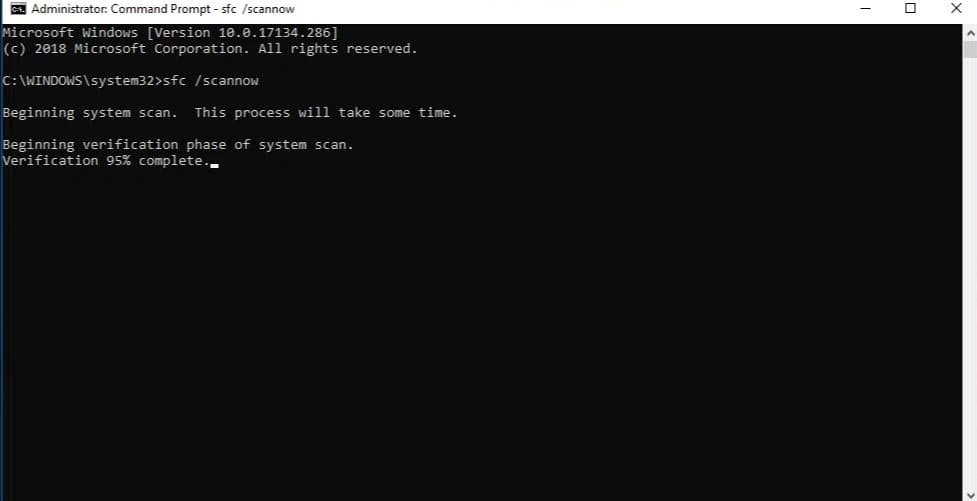
Solution 4: Run Windows System File Checker (SFC)
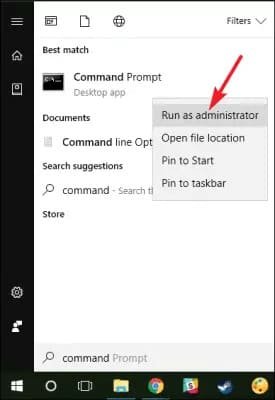
- Open Command Prompt (Run as Administrator).
- Enter:
- sfc/scannow
- Let the scan complete; it will repair corrupted system files.
- Reboot and test QuickBooks again.
Solution 5: Rename .ND and .TLG Files
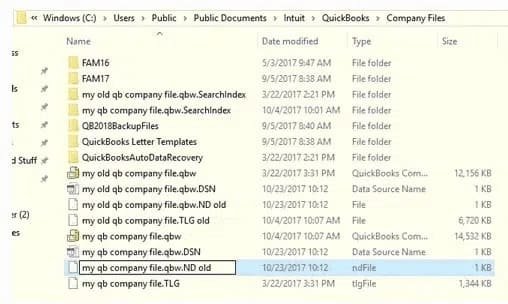
- Navigate to the folder containing your company (.QBW) file.
- Find files with the same base name but extensions .ND and .TLG.
- Right-click each and rename them by adding .OLD (for example, Company.qbw.nd.OLD).
- QuickBooks will generate fresh versions when you reopen the file.
Solution 6: Perform Disk Cleanup & Remove Temp Files
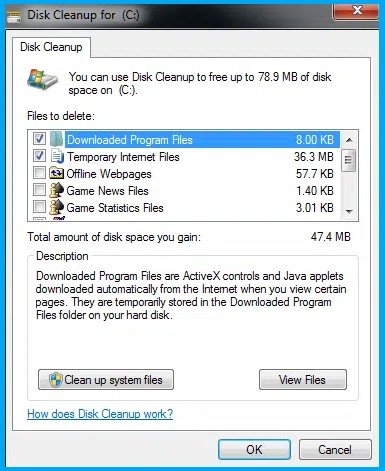
- Launch Disk Cleanup (search in Windows).
- Select your system drive (usually C:).
- Check categories like Temporary files, Recycle Bin, etc.
- Hit OK to clean.
- Restart the computer and test again.
Solution 7: Update QuickBooks to the Latest Release
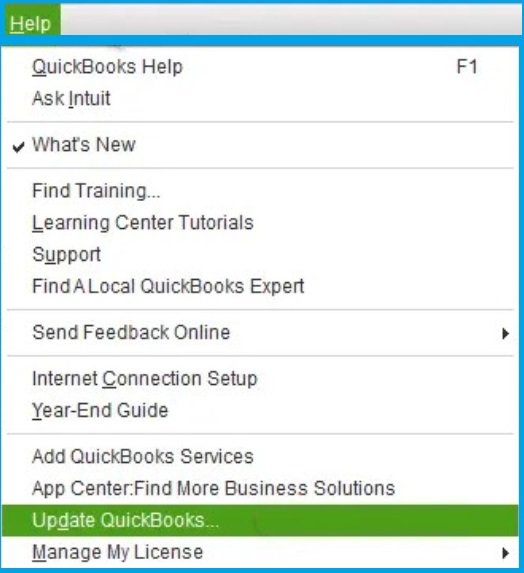
- Open QuickBooks as an Administrator.
- Go to Help → Update QuickBooks Desktop → Update Now.
- Check all updates, click Get Updates, then close and reopen QuickBooks to install them.
- After updates are applied, try opening your file again.
Solution 8: Disable QBCFMonitorService (Optional)
- Press Win + R, type services.msc, and press Enter.
- Scroll to QBCFMonitorService, right-click → Properties.
- Change Startup type to Disabled.
- Click Apply, OK, then restart.
- Try opening your company file again.
Solution 9: Use Windows System Restore
- Open System Restore from the Windows search bar.
- Choose a restore point dated before the error began.
- Follow the wizard to restore.
- After a restart, try opening the file again.
Common Causes of QuickBooks Error 6209
- Corrupt QuickBooks installation: A Partial or damaged installation leads to internal module errors.
- Damaged or outdated Microsoft .NET Framework: QB relies on .NET; corruption or missing components break its functionality.
- Faulty.ND/ .TLG files: These configuration & log files may be corrupted and block file access.
- Windows system file errors: Corrupted system files or OS instability can break QB functionality.
- Malware or virus infection: Malicious software may corrupt QB or system components.
- Outdated Windows or missing patches: Missing OS updates or incompatibility causes instability.
Symptoms & Signs of QuickBooks Error 6209
Here are common indicators that Error 6209 is occurring:
- You see the error message “6209, 0” when opening a company file
- QuickBooks crashes or freezes during file opening
- Windows responds slowly or becomes sluggish
- The program window or OS becomes unstable or unresponsive
- Backup or file restore attempts fail with the same error
Conclusion
QuickBooks Error 6209 arises when QuickBooks cannot access company files, often due to corrupted installations, .NET Framework issues, or system file problems. By following a systematic troubleshooting path, updating software, diagnosing via Tool Hub and Install Diagnostic, repairing .NET, renaming configuration files, and using system utilities, you can resolve most cases. If, after all these steps, the error persists, the issue may lie in deeper system corruption or severe file damage. In such situations, consulting a QuickBooks recovery expert is wise to avoid data loss and restore full operation.
Frequently Asked Questions
Q 1: Can QuickBooks File Doctor fix Error 6209?
Ans: QuickBooks File Doctor is more suited for network or company file corruption errors (e.g., 6000 series). It may help in certain file access issues, but for Error 6209, repairing the installation or .NET is often more effective.
Q 2: Does renaming .ND and .TLG files cause data loss?
Ans: No. Renaming these files forces QuickBooks to rebuild them upon opening the company file. The actual data in your company file (.QBW) remains intact.
Q 3: Which .NET versions should be enabled to avoid error 6209?
Ans: You should enable .NET Framework 3.5 (including SP1) and 4.x as required. Ensure they are turned on in Windows features.
Q 4: What if System File Checker (SFC) cannot repair corrupted files?
Ans: If SFC fails, you can run DISM /Online /Cleanup-Image /RestoreHealth (on Windows 10/11). Or you may need advanced OS repair tools or reinstall Windows components.
Q 5: When should I contact a QuickBooks recovery expert?
Ans: If after trying all standard fixes, installation repair, .NET repair, file renaming, system utilities, the error persists, or if your company file still won’t open or shows data corruption signs, it’s time to seek professional help. An expert can perform deep-level file repair or recovery with minimal data loss.
