
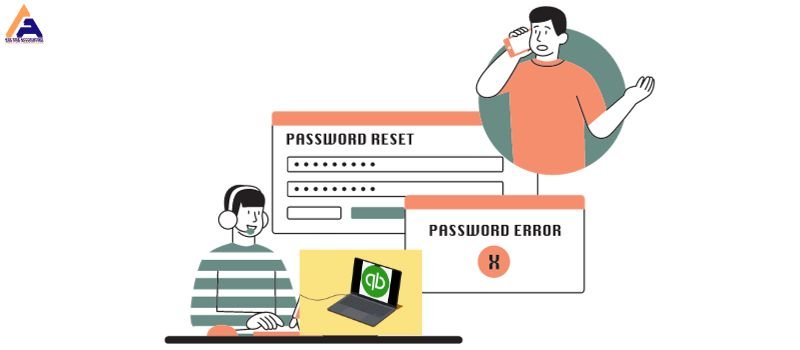
QuickBooks password recovery is a crucial resource for those users who have forgotten or lost access to their QuickBooks accounts. Both admin and non-admin users can have their passwords reset by the company file admin through the users and passwords menu.
In cases where the regular password reset procedures don’t work then the automated password reset tool becomes an alternate solution. This tool provides a systematic approach and guides users through the password recovery process. Let’s delve into more details of QuickBooks password recovery methods.
Use the Automated Password Reset Tool for QuickBooks Desktop
Resetting your QuickBooks admin password is an easy process with the automated password reset tool in QuickBooks Desktop. Here’s a step-by-step guide to help you access your company file.

- Access the automated password reset tool for QuickBooks Desktop. This tool supports password reset for QuickBooks versions from 2008 to 2019. If you don’t have a CEF browser, then an HTML page will open and redirect you to the correct link.
- Fill in the QuickBooks license number and the business information used during your QuickBooks registration. Ensure that the entered details match the information in the system. Correctly fill in the email address, primary business phone number, and ZIP code of the main contact.
- Agree to the license terms, and the Automated Password Reset tool will automatically be downloaded. If the download doesn’t start automatically, then manually select the “Download now” option.
- Run the Automated Password Reset tool and input the token number received via email.
- Choose the corresponding QuickBooks version from the QuickBooks Desktop Products drop-down menu.
- Select the “Browse for Company File” and choose the specific company file for which you want to reset the password.
- Provide the correct company file admin username (if different from ‘Admin’) and enter a temporary new password. QuickBooks will prompt you to change this password when you next open the company file.
- Finalize the process by selecting “Reset Password.” This step ensures the successful completion of the password reset for your QuickBooks Desktop.
Password Recovery for QuickBooks Desktop Administrator
Let’s look into the steps of how to perform password recovery for a QuickBooks administrator in a bit more detail. At the time you forget your password, you can recover it via a security question selected at the time of setup.
Manually process
- Go to the accompanying site through QuickBooks support.
- A form has to be filled out on the website.
- When you submit the form, an email will be sent to the email address entered in the field.
- This email will incorporate a Token number that will be utilized as part of the approval procedure of resetting the password, and a link to a downloadable executable that resets the password
- Open the email and record or duplicate the Token Number.
- Tap the connection to the executable.
- Once downloaded, you will see a layout that requests the Token, Company File Location, and two fields to show the new password key.
- Fill out the form and then submit it. You will see the Verification Process run, and it will inform you of a fruitful reset.
- Once finished, you will be able to sign into the QuickBooks company record with the New admin password.
Recover using the Tool
If you are not able to recover your password and get a hold of your account, then you can make use of Intuit’s password recovery tool. The tool can be downloaded with the help of the following process.
- Click on the link to jump to Intuit’s website.
- Fill out the form provided. You will be required to fill in all the fields, which will include:
- Your QuickBooks license number.
- Your first name and last name.
- Email address, Phone number, and postal code.
- Once provided with all the details, verify the text in the picture and click submit.
- You will now be served with the token number and a link to download the QuickBooks Automated password recovery tool.
- Download the .exe file and run it on your desktop.
- Enter the software and provide the token number you received via mail or phone and hit ok.
- The tool will go and unlock your account to recover your data from your .QBW doc file.
Password Recovery for QuickBooks Online
In this blog, we will walk through QuickBooks Online login problems and learn the process of password recovery for the QuickBooks Online user ID and password. Follow the steps to recover the user ID and Password in QuickBooks Online.
Steps to Recover QuickBooks Online User ID and Password
- You have to tap the link for I forgot my user ID or Password on the sign-in page.
- It will redirect you to the page Get help signing in to QuickBooks.
- In the field box, you have to key in your phone number or email address.
- Then you have to click Continue.
- Select the type of how you want to reset your login information: By emailing the code or recovering my account differently.
- Then you have to click the Continue option.
- You will receive an email with your user ID in case you use your email address to verify the account.
Password Recovery for Intuit QuickBooks Account
Encountering issues signing in to your QuickBooks account is normal. Don’t worry, we’ve got you covered. Whether you forgot your user ID or password or lost access to your phone or email, here’s how to navigate through the process and regain access.
Tips for Intuit QuickBooks account recovery
If you can still reach your phone or email:
- Visit the sign-in help page.
- Provide your phone number, email address, or user ID.
- Choose your preferred method to receive a verification code via text, email, or select your user ID.
- Enter the verification code or follow the provided instructions.
- Reset your password when prompted or choose to skip.
- Once you’re back in your account, feel free to update your email, phone number or password.
- Adding a phone number is recommended for future verification codes.
If you no longer have access to your phone or email
- Use the account recovery form in this section.
- The team will process your request within one business day.
- For security reasons, only you can make changes to your Intuit Account.
- Capture a high-quality photo or scan of your government-issued ID (driver’s license, passport) or a notarized document with your name and address.
- Fill out the form below with your details and upload the ID or document.
- Check your email from no_response@intuit.com within one business day for further instructions. If approved, then you’ll receive a link to reset your password.
Additional:-
Reset Admin Password in any Version of QuickBooks Desktop for Windows
- Download the Automated Password Reset Tool for QuickBooks Desktop. This tool applies to all versions of QuickBooks Desktop for Windows.
- Enter your QuickBooks license number and business details used during registration. If there’s a mismatch, then log in to your Intuit account to verify and ensure accuracy in details like the authorized user’s name, email address, primary mailing address, license number, and phone number.
- Agree to the license terms, and the tool will auto-download. If the auto-download fails, then manually select “Download now” and save it to your Desktop.
- Execute the Automated Password Reset tool and enter the token number received via email.
- Choose the alternative QuickBooks version from the QuickBooks Desktop Products drop-down.
- Navigate and select the company file you wish to reset the password for.
- Provide the correct Company File Admin Username (if different from “Admin”). Set a temporary New Password as QuickBooks prompts you to change it after opening the company file.
- Click “Reset Password” to finalize the process. Now, log in to your company file using the new password.
Conclusion
In conclusion, QuickBooks password recovery offers a user-friendly process for resetting forgotten passwords. Utilize the Automated Password Reset Tool and follow the given steps. In case if the user is still facing an issue, then feel free to reach out to our dedicated Experts who are ready to help. Our QuickBooks support team will ensure a smooth and secure recovery process, allowing you to regain access to your QuickBooks account without any difficulty.
Frequently Asked Questions
Q 1: How can I recover my QuickBooks password if I forgot it?
Ans: If you’ve forgotten your QuickBooks password, you can reset it using the Automated Password Reset Tool. Open QuickBooks, then select “I forgot my password” on the sign-in screen and follow the prompts to receive a reset token via email. Enter the token in QuickBooks to create a new password.
Q 2: What should I do if the Automated Password Reset Tool doesn’t work?
Ans: If the Automated Password Reset Tool doesn’t work, then double-check the information you entered and ensure that it matches your details in the Customer Account Management Portal (CAMPS). If the issue continues, then consider contacting QuickBooks support for further assistance.
Q 3: Can I reset a user password in QuickBooks?
Ans: Yes, if you are the admin user and know the admin password, then you can easily reset a user’s password. Access the Set Up Users and Passwords menu, select Set Up Users, choose the user to reset, and then follow the on-screen instructions to enter a new password.
Q 4: Is there a one-time use limitation for the Automated Password Reset Tool?
Ans: Yes, the Automated Password Reset Tool is a one-time use. If you need to reset your password again, you’ll have to fill out the verification form to generate a new token.
Q 5: What information is required for QuickBooks password recovery?
Ans: For password recovery, you may need your QuickBooks license number, the name, email address, phone number, and ZIP code associated with the product when purchased. Ensure these details match the information in the CAMPS.
Q 6: Can I recover passwords for QuickBooks Desktop on Mac?
Ans: Yes, administrators can reset their passwords by selecting the lock icon in the Password field, choosing a recovery email address, and following the email instructions. Admins can also reset passwords for non-admin users through the Users and Passwords menu.
