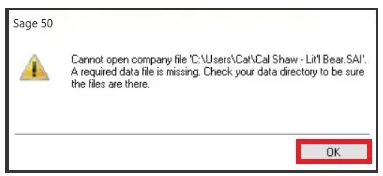
Sage 50 is an accounting software solution designed to help small and medium-sized businesses manage their financial operations. It relies on company files to store and manage critical accounting data, making uninterrupted access essential for daily business operations. However, many users encounter the Sage 50 “Cannot Open Company File” error when attempting to access their company data.
The error can appear in several forms, including messages such as
- “Unable to open company file.”
- A required data file is missing.”
- “Cannot open file [Company Directory]\permiss.dat.”
- “Database engine reported an error.”
- “The selected company cannot be opened.”
- “Please check that your version of Sage 50 is compatible with the company file.”
This guide will discuss the causes of the Sage 50 Cannot Open Company File error, its signs and symptoms, prerequisites for troubleshooting, effective solutions, preventive measures, and more.
What are the Causes of the Sage 50 Cannot Open Company File Error?
The Sage 50 Cannot Open Company File error can result from multiple system, database, file, and network-related issues that prevent proper access to company data. The key causes include:
- Actian PSQL (Pervasive) database engine failure
- Corrupted company data files
- Missing or mismatched .SAI and .SAJ files
- Incorrect data path configuration
- Network or server connectivity failure
- Firewall or antivirus blocking Sage processes
- Version mismatch between Sage and the company file
- Permission or access restrictions
What are the Signs & Symptoms of the Sage 50 Cannot Open Company File Error?
The Sage 50 Cannot Open Company File error presents several distinct signs indicating the software is unable to access or load company data correctly. The key symptoms include:
- Sage 50 displays direct error messages such as “Unable to open the Company File” or “The database engine reported an error.”
- The application freezes, hangs, or crashes when attempting to open a company file or log in
- An extended loading time occurs before the system fails to access company data
- The login or company selection screen responds slowly or becomes unresponsive
- The company list fails to load properly or appears incomplete
- “File in use” or “Access denied” messages appear during login attempts
- Data path errors indicate missing, incorrect, or unreachable file locations
- Network company files do not appear in multi-user mode or shared environments
- Backup restoration completes successfully, but the company file still fails to open
What are the Prerequisites to Fix the Sage 50 Company File Error?
Before fixing the Sage 50 company file error, you should prepare the system properly to avoid data loss or additional complications. Listed below are the key prerequisites for the Sage 50 cannot open the company file error.
- Create a full backup of the company data before making any changes
- Log in as a Windows Administrator to gain full system control and permissions
- Run Sage 50 using “Run as Administrator” to avoid permission-related restrictions
- Ensure that the .SAI file and .SAJ folder exist together in the same directory, share the same name, and are stored in the same location.
- Ensure Sage 50 version is compatible with the company file version and that Windows updates are within Sage-supported compatibility ranges.
- Add Sage 50 and Actian PSQL services to the antivirus and firewall exception lists instead of disabling security software completely.
- Confirm that you have full read and write access to the company data folder
- Check that the system has stable network access if the company file is stored on a server or shared drive
- Close all Sage 50 processes and background services before starting repairs
- Ensure sufficient disk space is available for data access and repair operations
Methods to fix the Sage 50 Cannot Open Company File Error?
When Sage 50 is unable to open a company file, it usually indicates underlying issues related to data integrity, system configuration, or service failures that prevent the application from accessing the required files. Here are the proven methods to fix the Sage 50 Cannot Open the Company File error.
Method 1: Verify Sample Company File Access
It helps determine whether the issue is caused by the Sage 50 installation or only the company file. Listed below are the steps to check system-level functionality:
- Open Sage 50 and launch the sample company file
- If the sample file opens, the issue is with the company data file
- If it fails, the issue is likely installation or system-level
- Check the antivirus only if Sage processes are being blocked
Method 2: Fix Company File Structure (.SAI and .SAJ)
It ensures that the company data files are complete, correctly named, and properly placed. The following are the steps to validate file structure integrity:
- Ensure that .SAI file and .SAJ folder exists together in the same directory
- Both must have identical names
- Restore missing files from a valid Sage backup if required
- Do not manually delete .SAJ folders unless instructed by support
- Sage 50 does not use MySQL; it uses Actian PSQL database
Method 3: Verify Connection Manager and Database Service
It ensures the Sage database engine and connection service are working properly. Here are the steps to stabilize database service connectivity:
- Ensure Sage 50 Database Connection Manager (Actian PSQL service) is installed
- Restart the Sage 50 Database Connection Manager (Actian PSQL service) and verify it is functioning correctly.
- Temporarily move the company file to a local drive to determine whether network or path-related issues are causing the problem.
- Repair or reinstall the service if corrupted
Method 4: Resolve File Locking and Active Sessions
It removes blocked or stuck user sessions that prevent the company file from opening. Here are the steps to clear file lock issues:
- Ensure all users are logged out before changes
- Stop Sage and database services first
- Close Sage on all workstations and stop the database services before deleting .LCK files.
- Only remove .LCK files after confirming that no users or services are actively connected.
Method 5: Fix Permissions and Run as Administrator
It ensures Sage 50 has full access rights to company files and system resources. Here are the steps to correct permission-related issues:
- Run Sage 50 as Administrator
- Ensure full read/write permissions on the company folder
- Fix NTFS or network permission restrictions
- Restore the original network structure after testing
Method 6: Fix Network and Server Access Issues
This step resolves connectivity problems when the company file is stored on a network or server. Listed below are the steps to improve network access stability:
- Use UNC path (\\Server\Folder) instead of mapped drives
- Check server connectivity and credentials
- Verify DNS resolution and network stability
- Ensure a stable LAN connection in multi-user mode
Method 7: Improve Network Drive Stability
It ensures mapped drives remain stable and do not disconnect during use. Here’s how to stabilize network drive connections:
- Re-map the network drive if disconnected
- Enable auto-reconnect at startup
- Verify that the server and shared folder are accessible from the workstation.
- Prefer the UNC path if the mapped drive is unstable
Method 8: Remove Antivirus and Firewall Restrictions
It ensures security software is not blocking Sage 50 or its database services. Here are the steps to adjust security settings:
- Add Sage 50 and Actian PSQL services to the antivirus and firewall exception lists.
- Do not permanently disable antivirus or firewall during troubleshooting.
- Port requirements depend on the Sage 50 version, the Actian PSQL version, and the network configuration.
Method 9: Fix Folder Naming and Hidden File Issues
It resolves structural issues caused by incorrect folder names or hidden system files. Listed below are the steps to correct folder-level problems:
- Remove duplicate folder names like “(2).”
- Ensure the.SAI file and.SAJ folder structure is intact and correctly named.
- Unhide files only if required for troubleshooting
- Sage 50 uses the Actian PSQL database engine, not MySQL.
Method 10: Check Version Compatibility
It ensures Sage 50 software version matches the company file version. Here are the steps to verify version compatibility:
- Ensure Sage 50 version matches the company file version, and verify compatibility with Actian PSQL and Windows system updates within supported ranges.
- Do not open upgraded files in older versions
- Update Sage if a compatibility mismatch exists
Method 11: Run Data Verification Tool
It detects and repairs internal database inconsistencies within Sage 50. The following are the steps to verify company data integrity:
- Run Sage Data Verification in single-user mode
- Use Sysadmin login
- Allow the scan to complete fully
Method 12: Run Database Repair Utility
It fixes deeper database engine or installation-level corruption issues. Here are the steps to repair database components:
- Repair or reinstall Actian PSQL if database issues exist
- Use official Sage-supported installers
- Run repair only after closing all Sage processes
Method 13: Check System Health (Disk, Memory, Profile)
It ensures Windows system issues do not prevent Sage 50 from opening company files. Here are the steps to optimize system performance:
- Run CHKDSK for disk errors
- Ensure sufficient RAM and storage
- Close heavy background applications
- Test with a new Windows user profile if needed
Method 14: Restart System and Sage Services
It refreshes system processes and Sage services that can be stuck or unresponsive. Here are the steps to restart system-level services:
- Restart Actian PSQL and Sage services
- Reboot the system if necessary.
- Reopen Sage after a clean service restart
You may also read this: Sage 50 Cannot Connect to the Company Data Location
Preventive Tips for the Sage 50 Cannot Open Company File Error
These preventive practices help maintain system stability and reduce the chances of company file access failures in Sage 50. Here are the preventive tips for the Sage 50 cannot open the company file error.
- Schedule automatic backups at fixed intervals instead of relying only on manual backup routines
- Store backup copies in multiple locations, such as external drives and cloud storage, for redundancy
- Monitor system event logs periodically to detect early signs of database or service failures
- Avoid running heavy third-party applications alongside Sage 50 to reduce resource conflicts
- Keep Windows system components updated while ensuring compatibility with your Sage 50 version.
- Maintain consistent network naming standards to avoid confusion in shared environments
- Monitor the Sage 50 Connection Manager service and restart it only when performance or connectivity issues occur.
- Keep system date and time settings accurate to avoid authentication and file access issues
- Avoid abrupt switching between single-user and multi-user modes without proper session closure
- Periodically clean unused or outdated company shortcuts to prevent incorrect file path selection
Conclusion
The Sage 50 cannot open company file error usually occurs due to file corruption, service issues, or system conflicts. By following structured troubleshooting steps, users can restore access and prevent future issues. Regular maintenance, backups, and proper configuration help keep company data secure and ensure smooth, uninterrupted accounting operations.
Frequently Asked Questions
-
Can a wrong file location cause Sage 50 company file errors?
Yes, in case Sage 50 points to an incorrect or moved directory, it cannot locate the.SAI file, which leads to access failure.
-
Does the internet or network speed affect Sage 50 file access?
In multi-user setups, unstable networks can interrupt communication with the server and prevent the company file from opening properly.
-
Can Windows updates affect Sage 50 performance?
Yes, certain updates can change system permissions or compatibility settings, which can temporarily disrupt Sage 50 services or database connections.
-
Is it safe to manually move Sage 50 company files?
No, manually moving or renaming company files without following proper procedures can break file links and make the data inaccessible.
-
Is reinstalling Sage 50 a good solution for file issues?
Reinstallation should be a last option. It is only recommended when core program components are damaged or repairs fail to resolve the issue.