QuickBooks Desktop Freezing or Crashing issues occur when opening a company file, processing payroll, or switching between tasks. This problem disrupts your workflow and causes delays in accounting tasks. Damaged files, software conflicts, or system performance issues often cause it.
This guide explains what causes QuickBooks to freeze or crash and provides clear, practical solutions to resolve the issue.
What is a QuickBooks Freezing up or Crashing Error?
A QuickBooks freezing error occurs when the program becomes unresponsive or stops working during use. You may notice that QuickBooks slows down, the screen locks, or suddenly shuts down. This is usually caused by damaged program files, outdated software, or a lack of system resources.
Solutions to Fix QuickBooks Desktop Freezing or Crashing
Solution 1: Edit the DAT and DDF files
Alright, detective, time to dive into your company folder:
- First, close your company file (yes, all of them… no peeking).
- Hunt down the company directory like a pro and rename that mysterious file ‘DAT’ to ‘OldUserPref.DAT.’
- Next, delete every file with a .DDF extension. They’re basically the freeloaders of the QuickBooks world.
- Now, reopen your company, confirm to save the payments, and hit Print like a boss. If the printer actually obeys this time, celebrate responsibly.
Solution 2: Turn Off Tablet PC Input Services
If your computer thinks it’s a touchscreen when it’s clearly not, it’s time for an intervention:
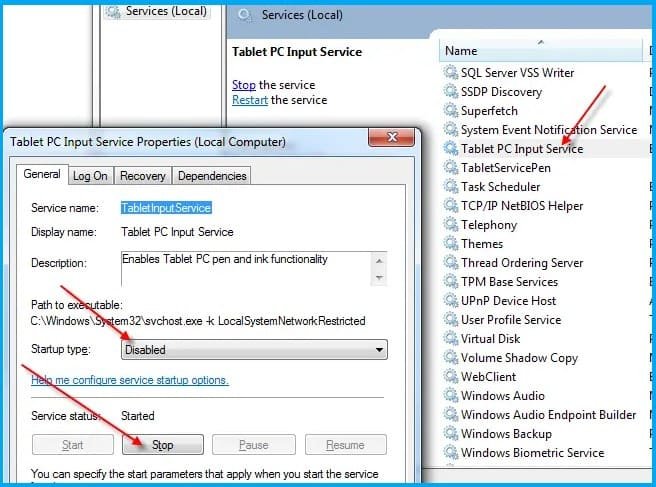
- Press Windows + R, type MSC, and click OK.
- Double-click Tablet PC Input Service (or “Touch Keyboard and Handwriting Panel Service” fancy name, same drama).
- Hit Stop the service, because we’re in charge here.
- Open its Properties, change the Startup type to Disabled, and click OK.
- Close the Services menu and relaunch QuickBooks like nothing happened.

Solution 3: Create and Restore a Portable Company File
When life gives you file issues, make a portable file smoothie.
To create it:
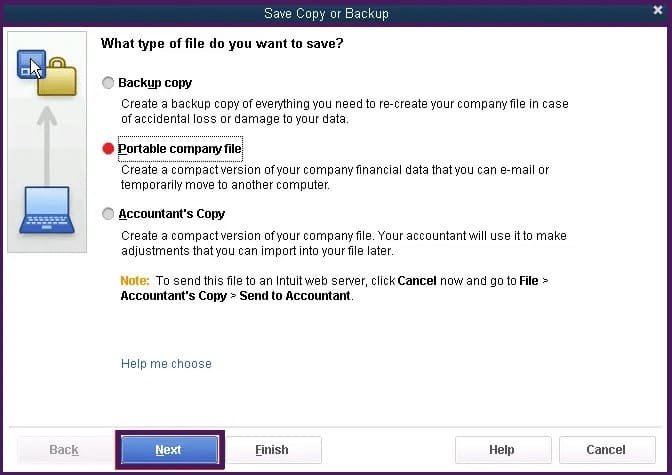
- Open QuickBooks and go to the File menu.
- Select Create Copy, then Portable Company File, and click Next.
- Choose a location to save it, hit Save, and confirm with OK.

To restore it:
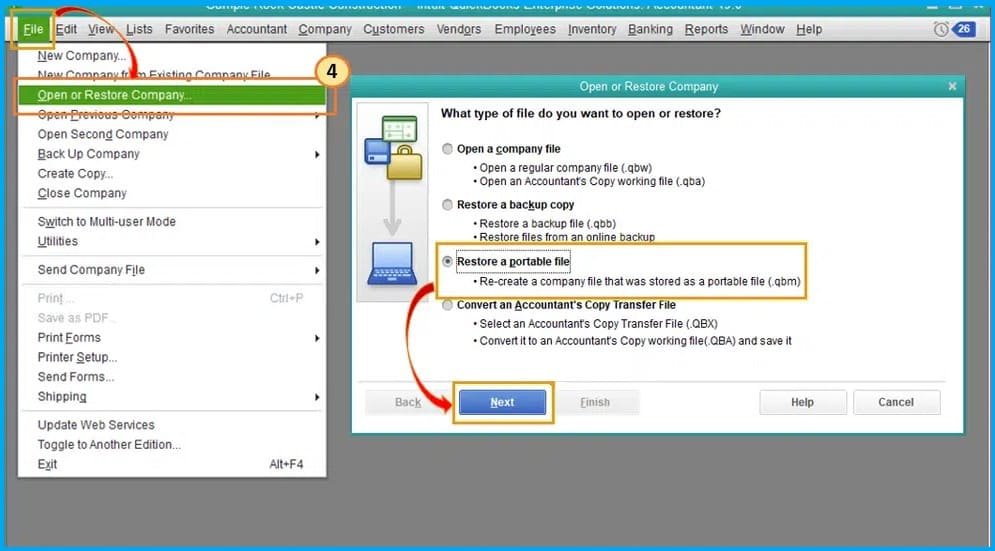
- Head back to the File menu → Open or Restore Company.
- Pick Restore a Portable File → click Next.
- Find the file, open it, click Next, choose a save location, and hit Save.
- See, your company is back from vacation.

Solution 4: Use the Rebuild Data Tool
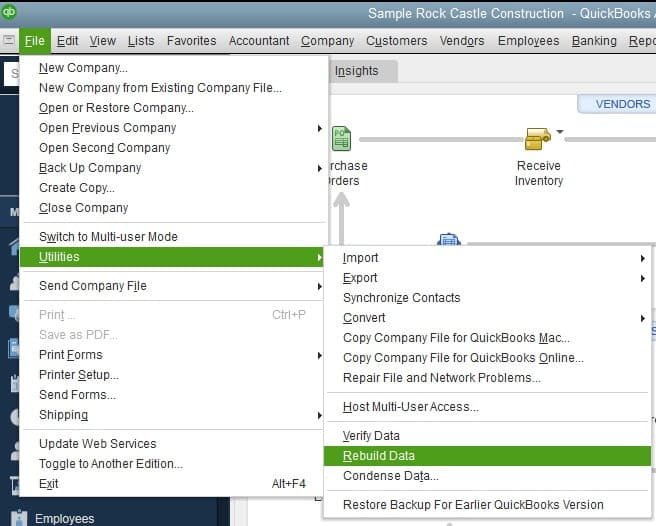
- QuickBooks, go to File → Utilities → Rebuild Data.
- When prompted, hit OK and follow the on-screen steps to back up your data.
- Wait patiently (or impatiently, your call). If your mouse still moves, the tool’s working.
- When done, select Verify Data from the same Utilities menu.
- If QuickBooks says “no issues found,” breathe easy.
- If it screams “errors detected,” click Rebuild Now.

Solution 5: Uninstall QuickBooks Desktop
Sometimes you just have to let go and start fresh.
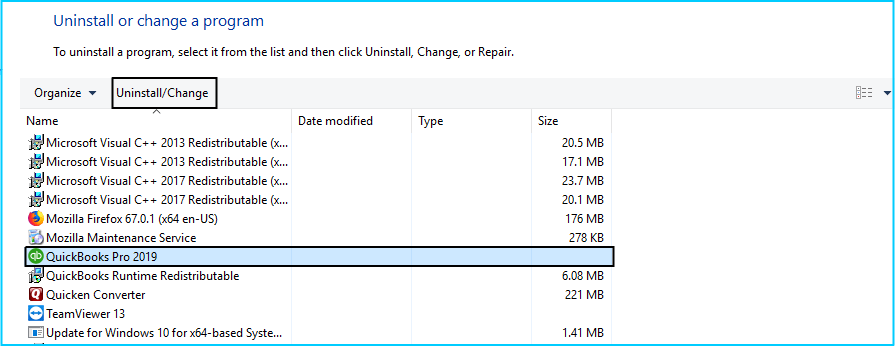
- Press Windows + R, type Control Panel, and hit OK.
- Select Programs and Features → Uninstall a Program.
- Find QuickBooks in the list, then choose Uninstall/Change.
- Follow the on-screen breakup instructions and part ways gracefully.

Solution 6: Use QuickBooks Tool Hub
- Download it (from the official source, not some sketchy website).
- Save it somewhere easy to find, then double-click QuickBooksToolHub.exe.
- Follow the prompts and install it.
- Open the shiny new Tool Hub icon on your desktop.

Step 1: Run QuickBooks File Doctor
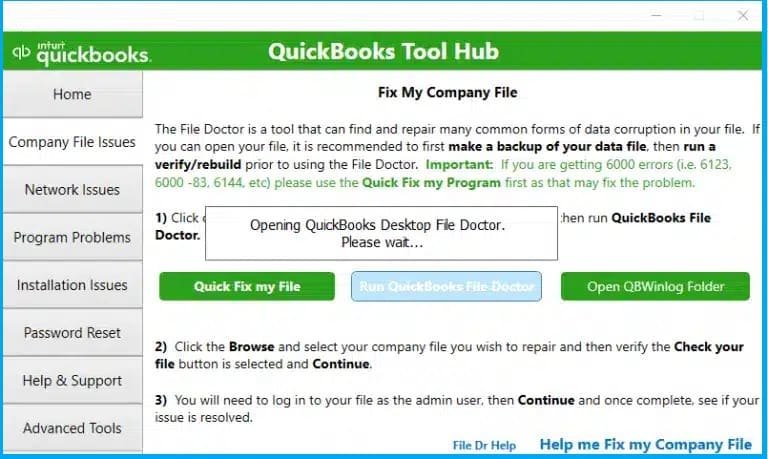
- Open Tool Hub → Company File Issues → Run QuickBooks File Doctor.
- Browse for your company file, check the network and file systems, then hit Enter.
- Enter your admin password and click Next.
- Sit back, relax, and let the File Doctor do its thing.

Step 2: Use the Clean Install Tool
If the File Doctor gives up, time for the Clean Install superhero to take over.
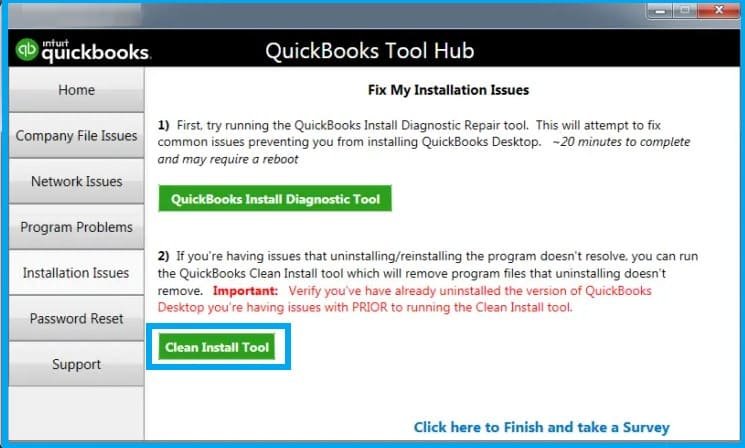
- Go to Installation Issues → Clean Install Tool.
- Open QBcleaninstallutility.exe, agree to the terms (after pretending to read them).
- Choose your QuickBooks version, hit Continue, and finally OK.
- When it says QuickBooks is ready for a clean install, you’ve earned your reboot.

Step 3: Run the Install Diagnostic Tool
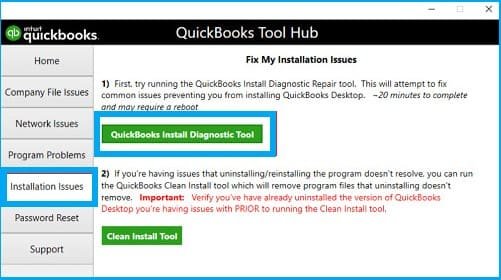
- In Tool Hub, head to Installation Issues → QuickBooks Install Diagnostic Tool.
- Let it download and run. This might take a minute (or five).
- Close everything else and let it fix your system.
- Reboot your computer. Don’t worry, it’s part of the ritual.

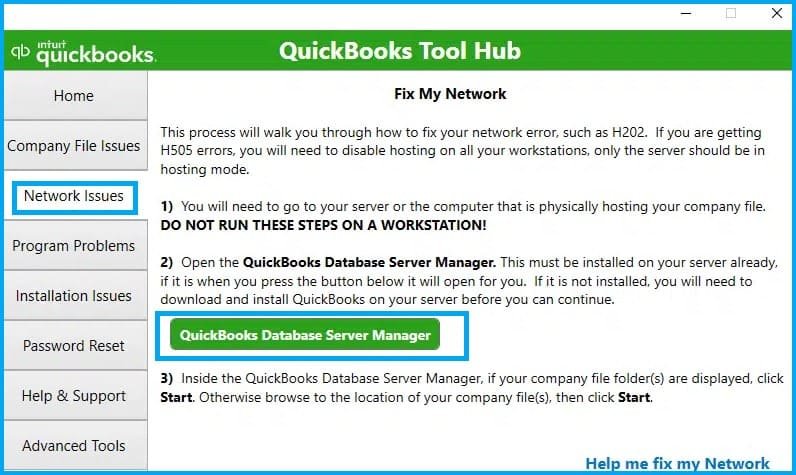
Step 4: Use the QuickBooks Database Server Manager
- Launch Tool Hub → Network Issues → QuickBooks Database Server Manager.
- Let it work its magic on your network connection.
- Cross your fingers, this might stop those random freezes.

Solution 7: Clear Browser Cache & Temporary Files
Clear Your Browser Cache:
- On Windows: Press Ctrl + Shift + Del
- On Mac: Press Command + Shift + Del
- On Chromebook: Press Ctrl + Shift + BackspaceChoose All time, then hit Clear data. Wait a few seconds, and see a lighter, faster browser.
Clear temporary files:
- Press Windows + R, type %temp%, and hit Enter.
- Press Ctrl + A to select all those dusty old files.
- Hit Delete, confirm with Yes, and enjoy the sweet silence of a cleaner system.
Solution 8: Use the QuickBooks Refresher Tool
- Close all QuickBooks windows.
- Download the QBRefresher Tool and save it on your desktop.
- Run it, it’s super quick.
- Reopen QuickBooks and see if it’s back to behaving.
Solution 9: End QB-Related Processes
- Hit Ctrl + Alt + Delete, and open Task Manager.
- Go to the Processes tab.
- End every task that starts with QB, QuickBooks, or Intuit.
- Close Task Manager, relaunch QuickBooks, and a hopeful victory is yours.
What are the Reasons When QuickBooks Freezes or Crashes?
- Corrupted or missing QuickBooks installation files.
- A damaged or large company file.
- Outdated QuickBooks desktop version.
- System compatibility or hardware issues.
- Conflicts with antivirus or third-party apps.
- A damaged QBWUSER.ini file.
- Limited user permissions or restricted access.
Possible symptoms of QuickBooks Desktop freezing or crashing
- QuickBooks stops responding or freezes upon startup.
- The software quits unexpectedly.
- The mouse pointer moves continuously, or the screen goes blank.
- System performance slows down when using QuickBooks.
- “QuickBooks has stopped working,” or a similar error message appears.
Conclusion
When QuickBooks Desktop freezes or crashes, it disrupts daily accounting work. This problem is usually caused by damaged files, outdated software, or system conflicts. Following the solutions above, especially using the QuickBooks Tool Hub and rebuilding data, can help restore smooth performance. Regular software updates and backups also prevent future errors.
Frequently Asked Questions
Q 1: Why does QuickBooks repeatedly freeze on startup?
Ans: This is usually caused by damaged installation files or system compatibility issues.
Q 2: How can I prevent QuickBooks from crashing?
Ans: Run the Quick Fix My program, clear the cache, update QuickBooks, and ensure your system meets the requirements.
Q 3: Does antivirus software affect QuickBooks?
Ans: Yes. Some antivirus programs interfere with QuickBooks. Add QuickBooks to the exceptions list.
Q 4: What should I do if QuickBooks freezes when emailing invoices?
Ans: Update printer drivers, clear temporary files, and restart QuickBooks in Safe Mode.
Q 5: Can the Data Rebuild Tool fix QuickBooks freezes?
Ans: Yes. It repairs damaged company files that cause frequent freezes or crashes.