QuickBooks Crash Com Error

How to Fix QuickBooks Crash Com Error Windows 10, 11?

The QuickBooks Crash: COM Error occurs when QuickBooks Desktop suddenly closes while you’re opening the software, working on transactions, or sending forms like invoices or reports. This error is usually followed by the message:

“Crash: Com Error”

This crash can result in the loss of unsaved data and often points to a problem with how QuickBooks communicates with Microsoft applications or system components.

How to Fix QuickBooks Crash Com Error?

Here are the solutions you can try when the error appears on your QuickBooks Desktop. Get the simple methods to troubleshoot the QuickBooks crash com error easily and get back to work.

Solution 1: Update QuickBooks Desktop to the Latest Release 2024

A guide to update QuickBooks Desktop edition:

Step 1: Check for Updates

  • Open QuickBooks Desktop.
  • Press the “F2” key (or use Ctrl+1) to access the Product Information window.
  • Check your current version and release.
  • Verify if you have the latest available release for your version. QuickBooks will automatically download updates when they’re ready.
quickbooks get updates

Step 2: Perform the Update from QuickBooks

  • Close your company files and exit QuickBooks.
  • Open the Windows Start menu and search for “QuickBooks Desktop.” Right-click the icon and choose “Run as administrator.”
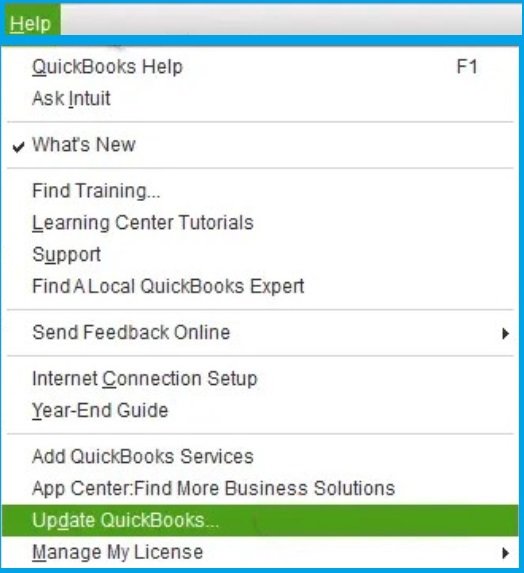
  • On the “No Company Open” screen, go to the Help menu and select “Update QuickBooks Desktop.“
Update QuickBooks Desktop
  • Navigate to the Options tab, select “Mark All,” and click “Save.”
  • Proceed to the Update Now tab and check the “Reset Update” box.
  • Click “Get Updates” when you’re ready.
  • After the update finishes, close and reopen QuickBooks Desktop. Install the updates when prompted by selecting “Yes.”
  • Once the installation is complete, restart your computer.

You may read this: Download QuickBooks Desktop (Windows and MAC)
Solution 2: Set up Outlook as the Default Mail App

  • Go to the Windows menu, and click on the Start button.
  • Locate the Control Panel icon, and click on that.
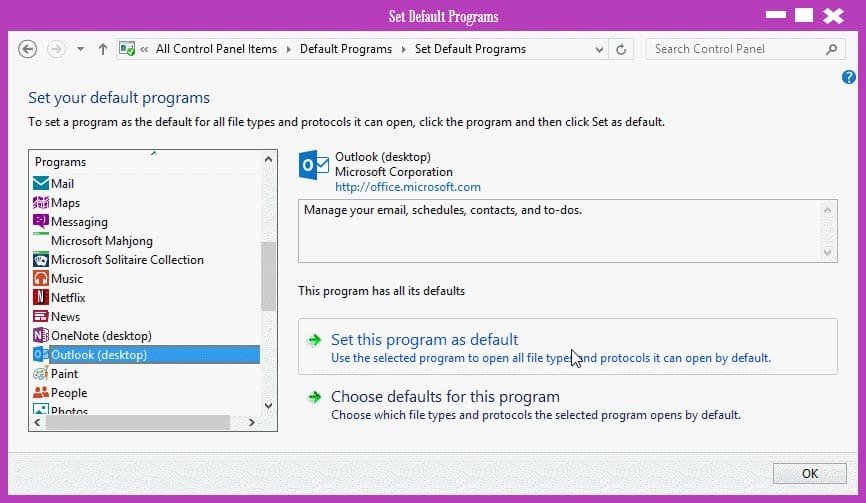
  • Locate the Default Program, and click on it.
  • Next, click on Set Your Default Program.
  • A list will appear with program names that are on your computer.
  • Find MS Outlook and select it.
  • Click on ‘select this program as default’.
  • Next, click OK.
Set up Outlook as the Default Mail App

Solution 3: Add Your Email Account to Microsoft Outlook

  • Go to MS Outlook and choose the File menu.
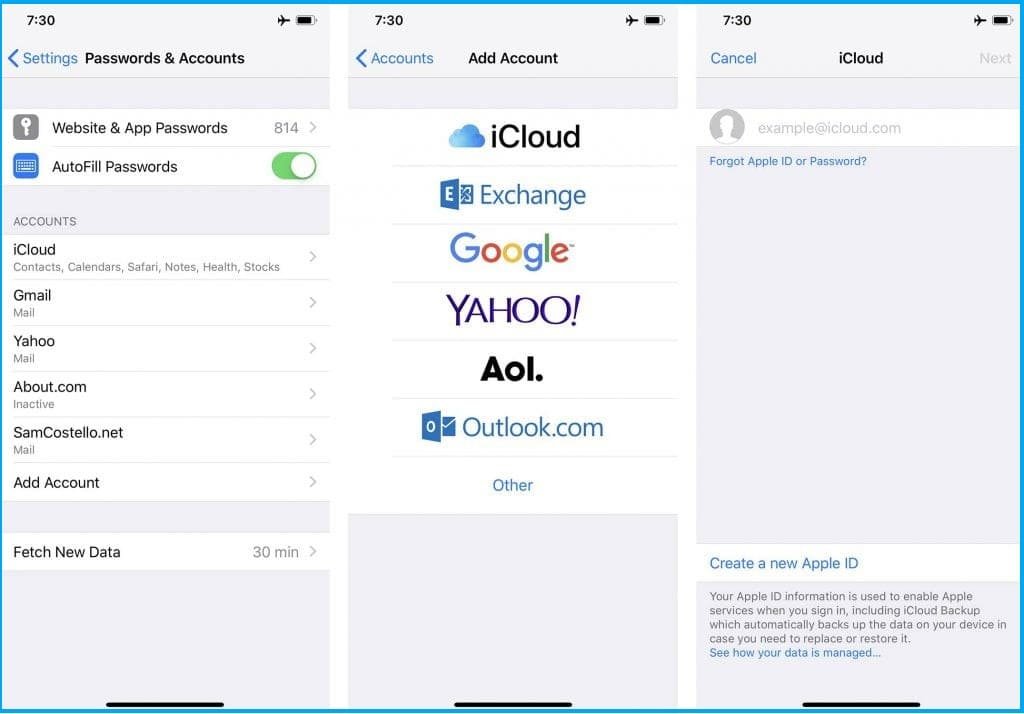
  • Locate the ‘Add Account’ icon and click on it.
Add Account
  • Enter the email address that you would like to add.
email address
  • Next, click on Connect.
  • Outlook will automatically detect the right server setting and wait for the program to locate it.
  • Next, click on Connect again.
  • You will be prompted to type in your password for the mail ID.
  • Enter the password and click on OK.
Add Your Email Account to Microsoft Outlook

“In case you are adding Gmail as your email address, you might get an error message showing that the email ID and the password do not match.

  • You will get a message from Google stating ‘Review blocked sign-in attempt.”
  • The mail will have a line ‘allowing access to less secure apps”.
  • Click on that line, and it will open a new page where you switch ON the icon beside ‘Allow less secure apps: OFF.
  • Once that is done, enter the password again and click on OK.

“In case QuickBooks cannot detect Outlook, then follow these steps:”
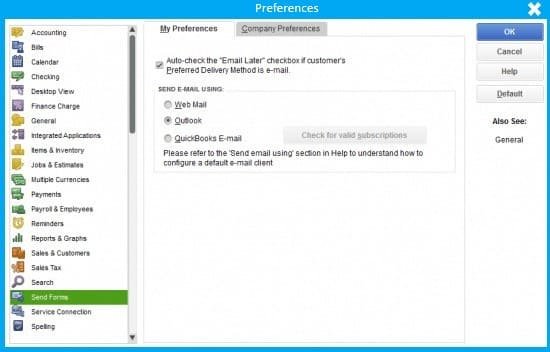
  • Edit > Preferences> Send form > For the Preference tab, check if you have the option of selecting Outlook.
  • You might also be required to repair and restart QuickBooks.
  • If in QuickBooks preferences, Outlook is not being detected, then you may have to make a new Windows profile.

Solution 4: Change Toggle Mail Settings

  1. From the Windows Start button & find the Control Menu. From there, click on Mail.
  2. In the Mail, select Microsoft Outlook.
  3. A new window will open named Mail Setup, select Show Profile.
  4. In case Outlook has already been set up as the default mail, then skip the previous two steps.
  5. In case the ‘Always use this profile button is selected, then select the prompt ‘Profile to be used and then click on ‘Select’, and next click on ‘Apply’.
  6. Use this profile to toggle the selection back and then apply.
  7. Finally, choose and click on OK.

Solution 5: Create a New Email Profile for Microsoft Outlook

  1. Firstly, you need to create a new Microsoft Outlook.
  2. If your Microsoft is open, close it and Outlook.
  3. Go to the Control Panel and from there select Mail
  4. From the Mail menu, select Show Profile
  5. On the profile, click on the icon Add
  6. In the Profile, the Name section, enter the name that you want to add to the Outlook Profile.
  7. Then click on OK.
  8. On the screen, instructions will be given on how to add an email account. Follow those instructions.
    • From the drop-down, select ‘Use this profile by selecting the new profile that you have created.
    • Click on Apply, then click on OK.
  9. This process will not remove your existing Outlook profile but rather add another one.

Solution 6: Update Microsoft Outlook

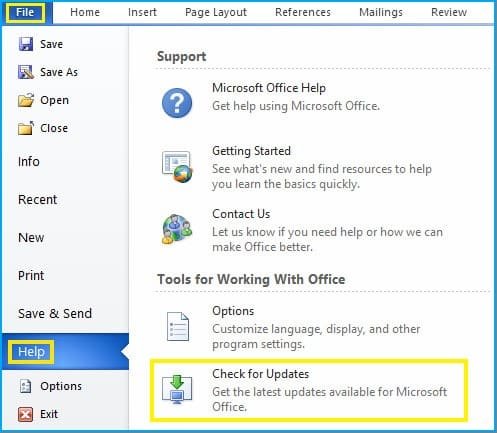
  1. Go to the Microsoft Outlook => File Option.
  2. After that, choose Office Account, then click on Update Options.
  3. Now choose Update Outlook Now (Take some time to update MS Outlook.).
Microsoft Outlook Update

Solution 7: Run QuickBooks in compatibility mode

  1. First of all, right-click on QuickBooks Desktop and select the Properties option.
  2. After that, on the Compatibility tab, choose the Run this program in compatibility mode option.
  3. Now select the current Windows in the drop-down menu.
  4. Click on the Run this program as an administrator checkbox and press Apply.
  5. Finally, click on the OK button and close the open window.

What Causes QuickBooks Crash Com Error?

Now you know why the QuickBooks crash com error occurs:

  • Incomplete or improper installation of QuickBooks software.
  • Malware corrupts the QuickBooks-related program records MSMXL and the .NET framework.
  • Windows components and MS Office components are missing or damaged.
  • QuickBooks software is not able to connect with Email service providers or clients.
  • When the System firewall blocks the QuickBooks communication process.
  • QuickBooks Components or files have been damaged or deleted by third-party software.

Symptoms of the QuickBooks Crash Com Error

  • QuickBooks crashes unexpectedly when sending forms via Outlook
  • The error appears when opening a company file or switching forms
  • You receive a pop-up message: “Crash: Com Error”
  • Outlook freezes or closes when used within QuickBooks
  • Some email functionality becomes unavailable

Conclusion

If you are still complaining about the QuickBooks crash com error, then get yourself connected with our QuickBooks error consultant team. You can also dial our toll-free number and share your issue with our expert team.

Frequently Asked Questions

Q 1: What is a QuickBooks COM Error?

Q 2: What are the common causes of QuickBooks COM Errors?

Q 3: How can I identify if I’m experiencing a QuickBooks COM Error?

Q 4: Does the QuickBooks COM Error affect specific versions of QuickBooks?

Q 5: Is there a difference between Com errors in QBDT and QBO?

Phone

+1-800-865-4183