How to Resolve QuickBooks Error 6147, 0 When Opening or Restoring a Company File

Post Image

QuickBooks users sometimes hit Error 6147, 0 when trying to open a company file or restore a backup. This error typically indicates a problem with a file, configuration, or permissions. In this guide, we explain what triggers the error, provide step-by-step fixes, and show you how to prevent it in the future.

What is QuickBooks Error 6147, 0?

Error 6147 is part of the “6000-series” of QuickBooks errors. It usually appears when QuickBooks cannot access a company file or restore a backup file reliably.

The error message often reads:

We’re sorry. QuickBooks couldn’t open your file.

We’ll try to fix the problem. Click Start to begin.

If the problem continues, contact support for assistance and report error codes: (-6147, 0).

How to Fix QuickBooks Error 6147 with Effective Methods

Follow these solutions in order. After each step, try opening or restoring the file to see if the issue is resolved.

Solution 1: Save a Backup Copy of Your Company File to the Local Computer

  • Open QuickBooks and go to the File menu.
  • Select Utilities.
  • If you see the option Host Multi-User Access, choose Yes.
  • When prompted to close the company file, click Yes again.
  • Restore another backup file from your local backup.
  • Ensure your company file path is less than 210 characters.
  • Try importing the file again.
  • You can also connect and send your file via the QuickBooks Data Service Team for further assistance.
Save a Backup Copy of Your Company File

Solution 2: Configure Trend Micro Antivirus Settings

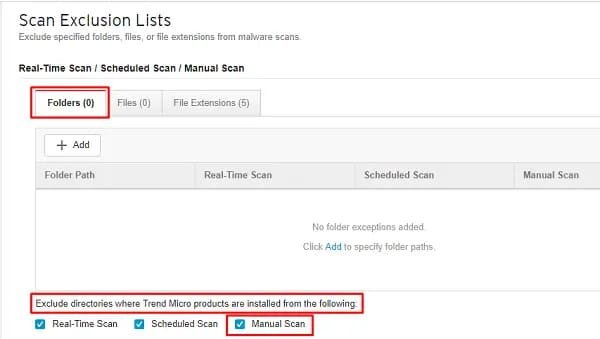
  • Open your Antivirus Settings.
  • Select the option to Ignore or Exclude a Path.
  • Add your QuickBooks company file folder to the exclusion list.
  • Hold down the Ctrl key while opening QuickBooks to prevent automatic file loading.
  • Open QuickBooks without a company file.
  • Press F2 to open the Product Information window and locate your company file path.
  • If the error persists, contact your Antivirus Service Provider for assistance.
Micro Antivirus Settings

Solution 3: Run the Verify and Rebuild Data Utility

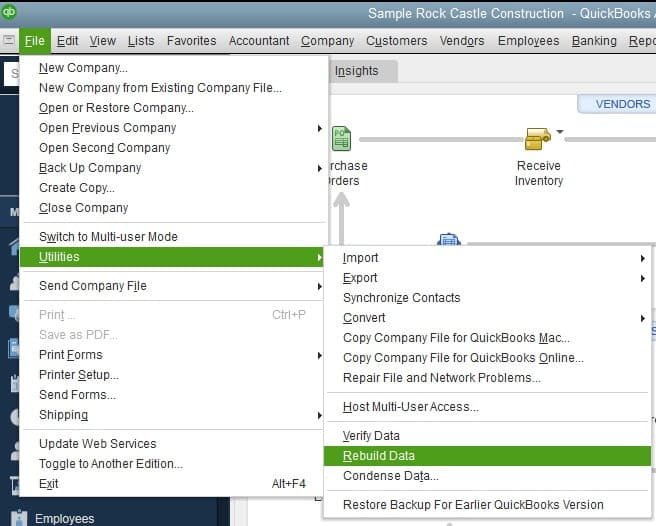
  • Open QuickBooks and go to the File menu.
  • Select Utilities, then choose Rebuild Data.
  • If prompted, take a backup of your company file.
  • Click OK to continue.
  • If QuickBooks stops responding, click OK again to proceed.
Verify and Rebuild Data Utility

Solution 4: Adjust Trend Micro Active Scan Settings

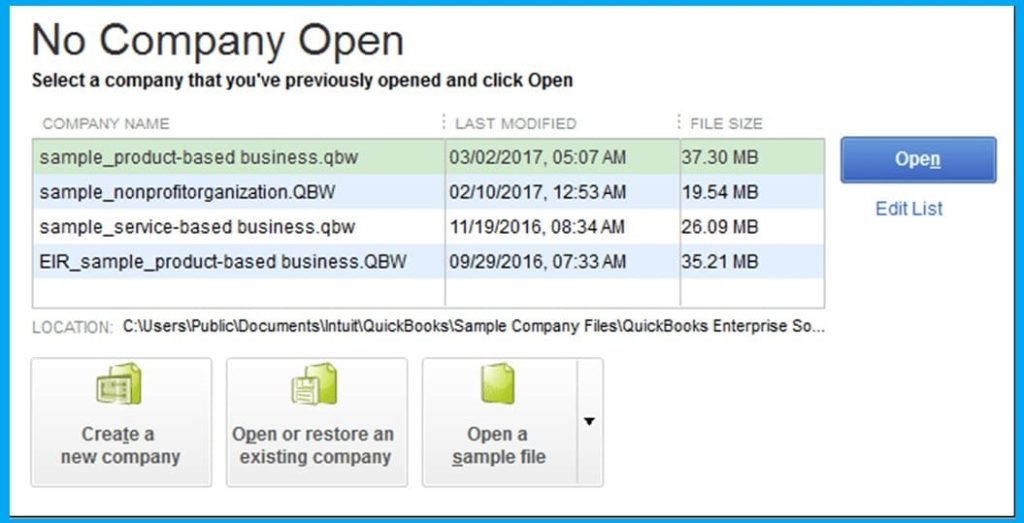
  • Double-click the QuickBooks icon while pressing Ctrl to open it without a company file.
  • In the “No Company Open” window, select your Company File.
  • Ensure the correct company file appears at the top of the list.
  • Exclude this folder from Trend Micro Active Scan to prevent file access conflicts.
No Company Open

Solution 5: Run the QuickBooks File Doctor Tool

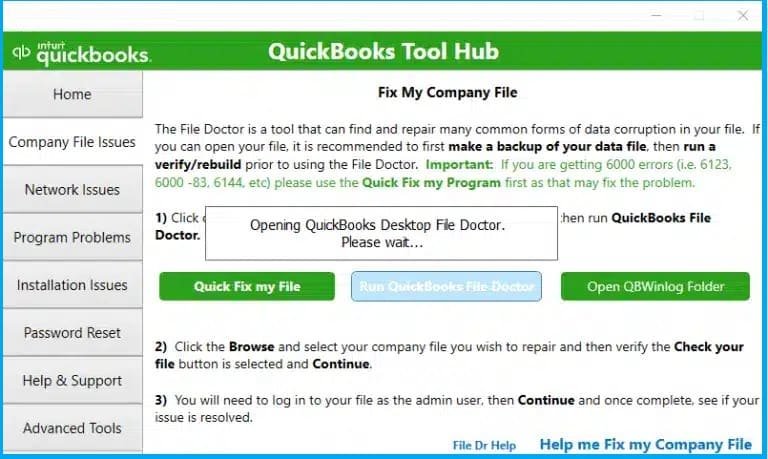
  • Download and install QuickBooks Tool Hub from the official Intuit website.
  • Open the Tool Hub and go to the Company File Issues tab.
  • Select Run QuickBooks File Doctor.
  • Let the tool automatically detect and fix the issues.
  • Follow the on-screen instructions to complete the repair process.
QuickBooks File Doctor Tool

Solution 6: Rename .ND and .TLG Files

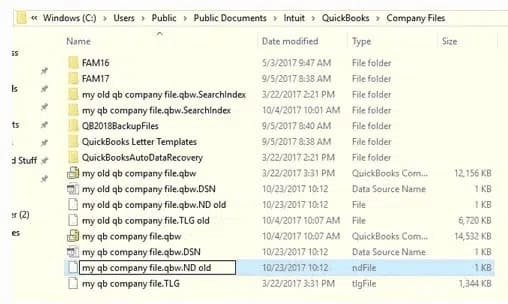
  • Open the folder containing your QuickBooks company file.
  • Locate the following files:
    • company_file.qbw.nd
    • company_file.qbw.tlg
  • Right-click each file and select Rename.
  • Add the word “OLD” at the end of each file name (e.g., company_file.qbw.nd.OLD).
  • Save changes and reopen QuickBooks.
  • Try signing in again to see if the issue is resolved.
Rename .ND and .TLG Files

Solution 7: Rename the .ADR File

  • Navigate to the folder that contains your Company File.
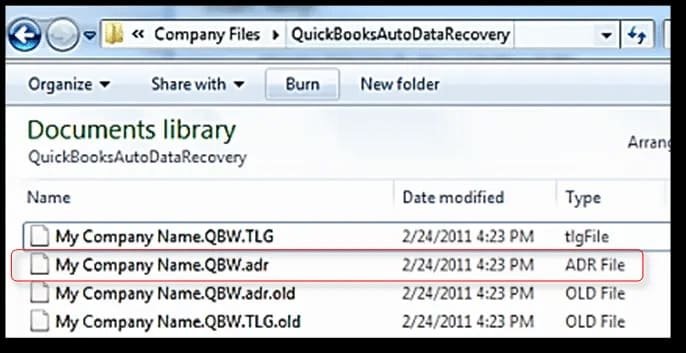
  • Locate the .ADR file (Auto Data Recovery file).
  • Open the folder and find the most recent backup file.
  • Right-click it and choose Rename.
  • Change the file extension from .ADR to .QBW.
  • Save the changes and reopen QuickBooks.
Rename of the .ADR file

Solution 8: Close All QuickBooks Processes

  • Log in as the Administrator on your system.
  • Press Ctrl + Shift + Esc to open Task Manager.
  • Click on the Users tab.
  • Highlight and end the following QuickBooks-related processes:
    • QBW32.EXE
    • qbupdate.exe
    • QBDBMgr.exe
  • After ending these tasks, reopen your company file in Multi-User Mode and check if the issue persists.
Close All QuickBooks Processes

Solution 9: Use QuickBooks Install Diagnostic Tool

  • Close QuickBooks Desktop.
  • Download and install QuickBooks Tool Hub (if not already installed).
  • Open QuickBooksToolHub.exe and follow the on-screen setup instructions.
  • Launch the Tool Hub Program.
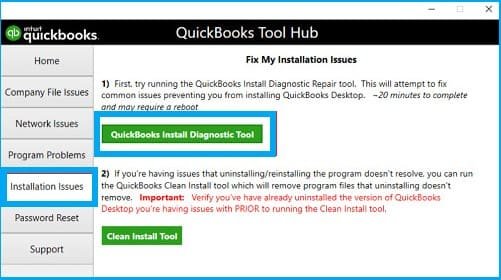
  • Go to the Installation Issues tab.
  • Select the QuickBooks Install Diagnostic Tool and let it run automatically.
  • Once the tool completes the scan and repair, restart your system.
  • Open QuickBooks again to confirm the issue is resolved.
Use QuickBooks Install Diagnostic Tool

Root Causes of Error 6147 in QuickBooks

Understanding the root causes helps you pick the right remedy. Key triggers include:

  • Corrupt or damaged company file: The .QBW file or its supporting files may be damaged.
  • Backup file issues / invalid path: Restoring from an external drive or network share can fail.
  • Path or filename too long/special characters: File path exceeding Windows limits or containing invalid characters can block access.
  • Damaged .ND / .TLG files: Those network configuration and transaction log files may be corrupted.
  • Antivirus/firewall interference: Security software may block QuickBooks’ file access.
  • Registry or installation corruption: The QuickBooks installation itself or Windows registry settings may be faulty.
  • Permissions/folder access issues: The Windows user may lack read/write access to the folder.

Symptoms of QuickBooks Error 6147

Here are the common signs you’re facing this error:

  • QuickBooks fails to open the company (.QBW) file.
  • The “Start” option in the error dialog doesn’t succeed.
  • Crashes or hangs when accessing the file.
  • You try to restore a backup, and the process fails.
  • Unexpected lag or freeze in the system while dealing with the company file.

Conclusion

QuickBooks Error 6147 usually signals a problem with your company file or the environment it’s stored in. By following a structured approach, from updating QuickBooks to using File Doctor, checking file location, renaming extensions, and adjusting security settings, you can resolve most causes of this error. Preventive practices such as proper backup routines, antivirus whitelisting, and avoiding long or corrupt file paths reduce future risk.

If the error persists after all standard troubleshooting steps, the issue likely involves deeper file corruption or environment conflict. In such cases, our professionals can help restore your file without data loss and prevent recurrence.

Frequently Asked Questions

Q 1: What causes QuickBooks Error 6147 to occur repeatedly?

Q 2: Can I use QuickBooks File Doctor to fix Error 6147?

Q 3: What is the safest way to restore a backup without triggering Error 6147?

Q 4: How do I identify if the company file is corrupted?

Q 5: Can antivirus software cause Error 6147?

Q 6: Is it safe to rename .ND and .TLG files?

Q 7: When should I consider a clean reinstall of QuickBooks?

Get solutions to all of your accounting and bookkeeping problems with industry-leading experts.

Call Now Chat Now
Phone

+1-800-865-4183