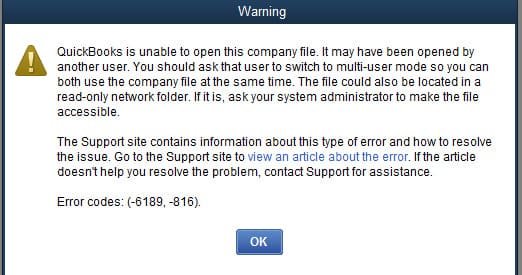
QuickBooks error 6189 816 is one such error that is commonly reported by QuickBooks users. This error code usually arises while the user tries to open a company file (.QBW) on a multi-user network. Although you may see the following error message on your desktop screen:
An error occurred when QuickBooks tried to access the company file (6189, 816 or 6190, 816)
Major Reasons for the QuickBooks Error 6189 816
If you’re experiencing a QuickBooks error 6189, it’s important to know the reasons and causes.
- When there is a dissimilarity between .tlg and .qbw files.
- If the .qbw file is being updated on another computer without the .tlg file.
- Due to the update failure.
- Another user accesses the company files in Single User Mode.
- Data Corruption in the QuickBooks data file.
- Damage while downloading company files.
- Incomplete/Improper installation process.
- Infection by a virus or malware in the system files of your Windows.
How to Troubleshoot QuickBooks Error 6189 816
Since there are multiple reasons why you face QuickBooks error 6189 816 thus you would need to work with multiple solutions. If one doesn’t work, then try to jump onto another one, as this will help you troubleshoot your issue. You are required to follow the steps in their exact sequence.
Solution 1: Run Quick Fix My Program from the QuickBooks Tools Hub
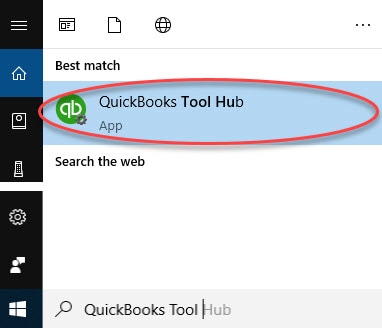
Step 1: Download and install the QuickBooks Tools Hub
The QuickBooks Tool Hub helps in fixing common errors. To use the tool hub, you must close QuickBooks. We advise using Tool Hub on Windows 10, 64-bit, for the best experience.
- First, you have to close QuickBooks.
- Then you have to download the QuickBooks Tool Hub latest version (1.6.0.3).
- Save the file in a location where you can find it quickly, such as your Windows desktop or Downloads folder.
- Open the QuickBooksToolHub.exe file you downloaded.
- To install and accept the terms and conditions, you have to follow the on-screen instructions.
- Double-click the icon on your Windows desktop to launch the tool hub after the installation is complete.
Step 2: Launch Quick Fix My Program from the Tools Hub
Any open background processes that QuickBooks is using will be closed by Quick Fix. Your program will receive a quick repair
- You have to select Program Problems from the QuickBooks Tools Hub.
- Then you have to select Quick Fix My Program.
- Open your data file in QuickBooks Desktop after starting it.
Solution 2: Reboot your System & Server
- Reboot Desktop comprises company files that can be easily accessed.
- In case you have stored your company data on the Server, you have to restart your Server.
- Follow the second solution in case the error is not fixed.
Solution 3: From the QuickBooks Tool Hub, Run the QuickBooks Database Server Manager on your server.
- From the Tools Hub, choose Network Issues, then choose QuickBase Database Server Manager. If QuickBooks is not already installed on your server, you will be prompted to install it.
- If you see your company file(s), choose Start Scan. If you don’t see the company file, browse to the location of your company file and then choose Start Scan.
- QuickBooks Database Server Manager will fix your firewall permissions automatically.
- Now select Close.
- The final step is to open QuickBooks Desktop on your server computer and then on your workstation.
Solution 4: Move Your Company Files to Your Local Hard Drive
If you want to access your company file (.QBW) on a removable or online drive, first move your company files to your local hard drive:
- You must save QuickBooks files, including your company file, on your server computer’s hard drive. Online file hosting services such as Dropbox, Google Drive, and Box.net are convenient, but they can cause problems.
- Do not store files on removable or external drives. External hard drives, USB flash drives, and network-attached storage [NAS] devices are not designed for running QuickBooks or multi-user networks.
- Don’t encrypt your QuickBooks files or the hard drive that stores them. This could block your multi-user network connection.
Solution 5: Rename .TLG and .ND and Files
- Go to Computer > choose the folder and open the company file from a specific location.
- Save the file in a default Location
- Search for files with the same file name as the company file with the extension .TLG and .ND
- Right-click and choose .TLG & .ND Company files to be renamed. To connect the word “.old” at the end of the file extension, press Enter.
You may read this: Update From QuickBooks Desktop Older to the 2024 Latest Release
Conclusion
The solution to QuickBooks error 6189 816 highly depends on the problem that caused it. Since many causes can lead to this particular error thus you would need to get expert advice. If the help is not accessible nearby, then you can get in touch with us at our number. You can dial us for the USA and Canada at our QuickBooks error consultant phone number, and our certified Experts will be happy to help you.