If you are looking for a solution to the question of how to undo or remove transactions, batch transactions, and client from reconciliation in QuickBooks. Undoing something is a task, don’t you agree? With QuickBooks, you have the liberty to undo things or mistakes as it has been designed to sort issues that can occur owing to human mistakes or any system-related problems.
This is one of the reasons, Intuit developed QuickBooks to rectify such mistakes so that those mistakes or errors don’t stand in the way of a smooth running of an establishment. It is very unique to this awesome accounting tool that has a corresponding Undo option after every transaction so that once the mistake has been realized, it can be undone. It is a Wow feature. Thus let’s learn how to undo in QuickBooks.
You will see options like Clear, Undo Typing, and Revert to correct glitches. Just knowing the words wouldn’t help. In-depth knowledge of the process is what is required so that process of undoing is successful.
Every transaction on your bank statement and every transaction recorded into QuickBooks are compared when you reconcile an account. Your accounts are accurate and balanced if everything matches. Know how to delete certain transactions from the reconciliation if you accidentally reconciled one.
Remember that even little adjustments can throw your accounts out of balance. You can only un-reconcile one transaction at a time to lessen the impact. Get in touch with your accountant if you need to start over fully. Whole reconciliations can only be reversed by accountants.
Make sure you are making the right changes before making any changes. If you are unsure, it is advised to speak to your accountant. A transaction may not be reconciled for a number of reasons. For example, you accidentally reconciled it, or it was a mistake and needs to be removed.
Here is how to edit and un-reconcile the transaction after you are aware of what needs to be changed.
Your accounting ought to be correct and balanced at this point. Contact your accountant if you need help with your reconciliation or if you need to make changes to a previous reconciliation. They are aware of the future steps because this can become challenging.
Contact your accountant if you need to restart. A full reconciliation can only be reversed by accountants.
After that, these transactions will return to the For Review section. You can include these in the Excluded area of QuickBooks if you don’t require them. This is how:
The Exclude tab will then get them. From there, you have the option to totally remove the transaction, which can’t be undone.
You have a unique option for reconciliation if your company uses QuickBooks Online Accountant. In some cases, it is advisable to start over from the beginning when one of your clients wishes to modify or undo a number of transactions on an earlier reconciliation. You can start over by undoing their entire reconciliation.
Download any attachments related to the reconciliation before you begin. A reconciliation can be undone to remove any attachments.
When you are in their company file.
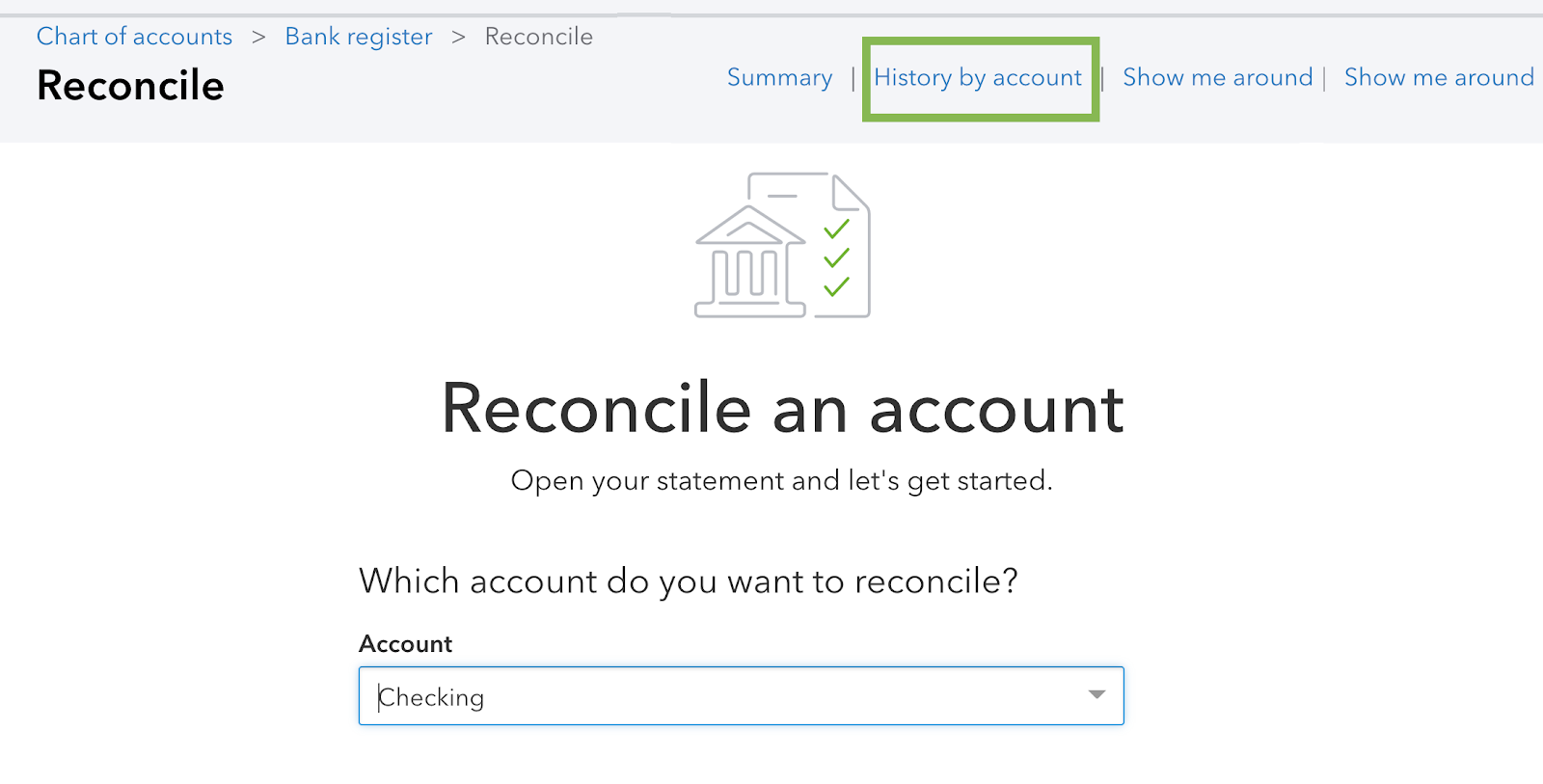
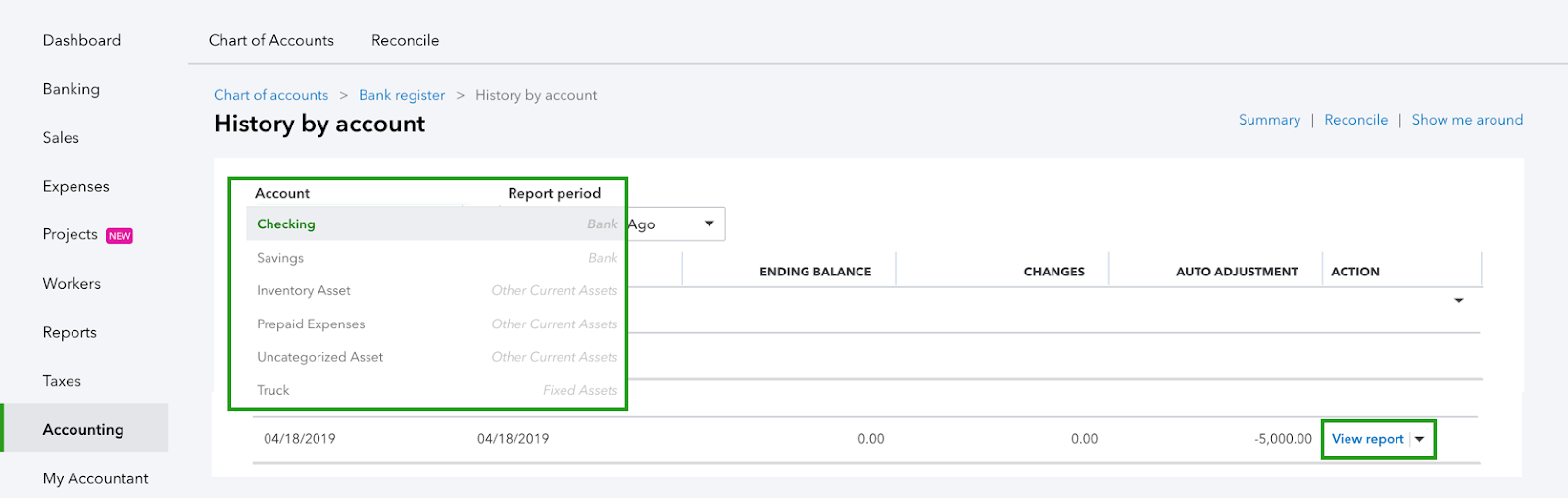
These are just a few examples of when you might want to use the Undo option. There can be more such glitches that you must get corrected. To get this reverted and rectified, we need to follow either of the steps below.
By now, the words Clear, Undo Typing and Revert must have made sense. Their usage is really a piece of cake. You needn’t store anxiety if you have wrongly got any transaction done. QuickBooks assist you in getting it rectified as you had never committed those mistakes. It is such a blessing to know that you can make corrections.
In case your query is still unanswered then you should need to get in touch with us on our site at askforaccounting.com or as we provide all the assistance to QuickBooks support US and Canadian citizens.

