Sage 300 error 49153 cannot access the database this occurs most frequently when users attempt to access their Sage ERP application and it fails to establish a connection with the database. However, it may be quite possible for many reasons that this access cannot detect an error.
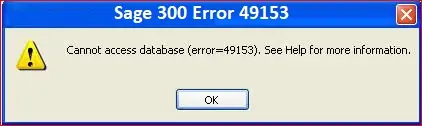
Cannot access database (error=49153) when attempting to login to an existing system
But you no longer need to worry, if you are also experiencing the same accessibility problem. This blog will explain how to Resolve Sage error 49153 cannot access database problems.
Here are the possible reasons why the Sage 300 error 49153 message appears on your system screen stating.
Before proceeding with this solution, it is critical to determine why your Sage application is unable to connect to the database.

If you are experiencing the error 49153 when trying to access your Sage 50 database there are a few things that you can do to resolve the problem.
Find the Data Source or Server name on the System DSNs tab (if a Server name is used, a 32 is added to it). Verify the SQL server’s name in the DSN entry. Verify that the other settings are left as default and provide the User ID and password for the SQL Authentication.
Test the DSN’s database connectivity
If the IP address fails to successfully connect to the database:
One approach is to determine whether the database connection error is specific to one database or all databases. To do so, log into the Sage DBSETUP utility, which stores all connection-related details of the database associated with the company in Sage.
The following are the steps for logging into Sage Utility.
You will notice that the Server listed is the correct server name (your Login ID and password are correct), and the database to which Sage attempts to connect is also correct. Open the Sage Company-connected database. Click OK and if you receive the Sage error 49153, double-check these settings and make any necessary changes.
Go to the server console and make sure the server is up and running. Checking the database server by name will tell you if the server is up and running. This will also assist you in determining whether it is visible on other computers on the network.
To accomplish this, carry out the following steps:
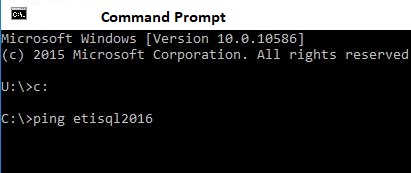
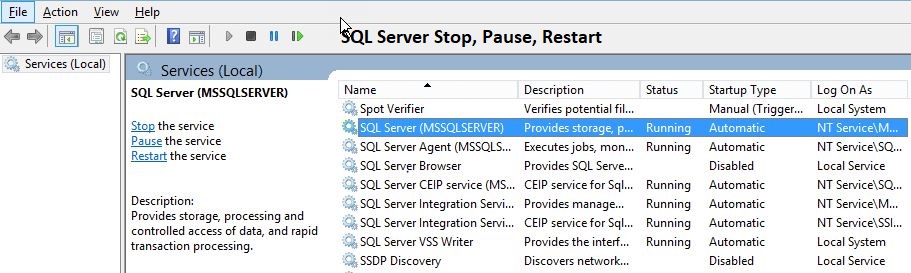
If you ping the server by name and still get the error, look into the SQL Server Service on the database server. This is to see if the service is down or otherwise not working.
It is also necessary to check the server. Once connected to the server desktop, click the Start button and then type ‘services.MSC and press Enter.
Sage error 49153 is the code of the Sage developers when the application Sage fails to connect to the database. That means your Sage 300 application has launched, but when you are trying to connect to your database you cannot do that. You may contact the Sage chat helpline a well-versed staff of specialists whenever you have a problem call or chat with experts.
A database built in a client/server configuration that uses SQL provides the best solution for a data-intensive enterprise to accommodate future growth.
The following are the benefits of Microsoft SQL Server:
● Scalability.
● Security.
● Reliability.
● Data Analysis.
To check it, open the Run window or simply press the Windows – R keys. Then, in the search box, enter WinDirsystemimbotite ad64e followed by the enter key. Click the server name in the “ODBC Data Source Administrator” window. This will show you all of the information.
Sage employs Structured Query Language (SQ) In common parlance, an SOL database has a separate database server, this could be any of several SQL servers, such as Oracle, Pervasive, MySQL, or Microsoft’s Sequel or MYSQL.

